Alpine Package Installer
Storj provides an Object Mount package installer for the Alpine Linux distribution.
This installer can be used with any musl-based Linux distribution.
Optional: Scripted Installer
If you prefer to use a musl-based scripted installer, refer to the musl installation instructions.
Follow the steps below to install and configure Object Mount for Alpine-based Linux platforms.
Step 1. Download the Installer Package
Download the latest package installer.
- Note: If you do not have a download link, reach out to your 🌐 Storj Representative.
Step 2. Unpack the Archive
Use the installer’s .run script to unpack the archive by entering the following command from a terminal window:
Processor Compatibility
Although the Alpine distro file naming convention is to only specify X86_64 (ex: cuno_mne_x86_64_musl_apk.run), the Object Mount APK Installer Package is designed to run on both AMD64 and Intel x86_64 processors (although not ARM-based CPUs).
Note: ARM-based processors are not supported at this time.
The unpacking process will prompt you to read and agree to the Object Mount end-user license agreement (EULA).
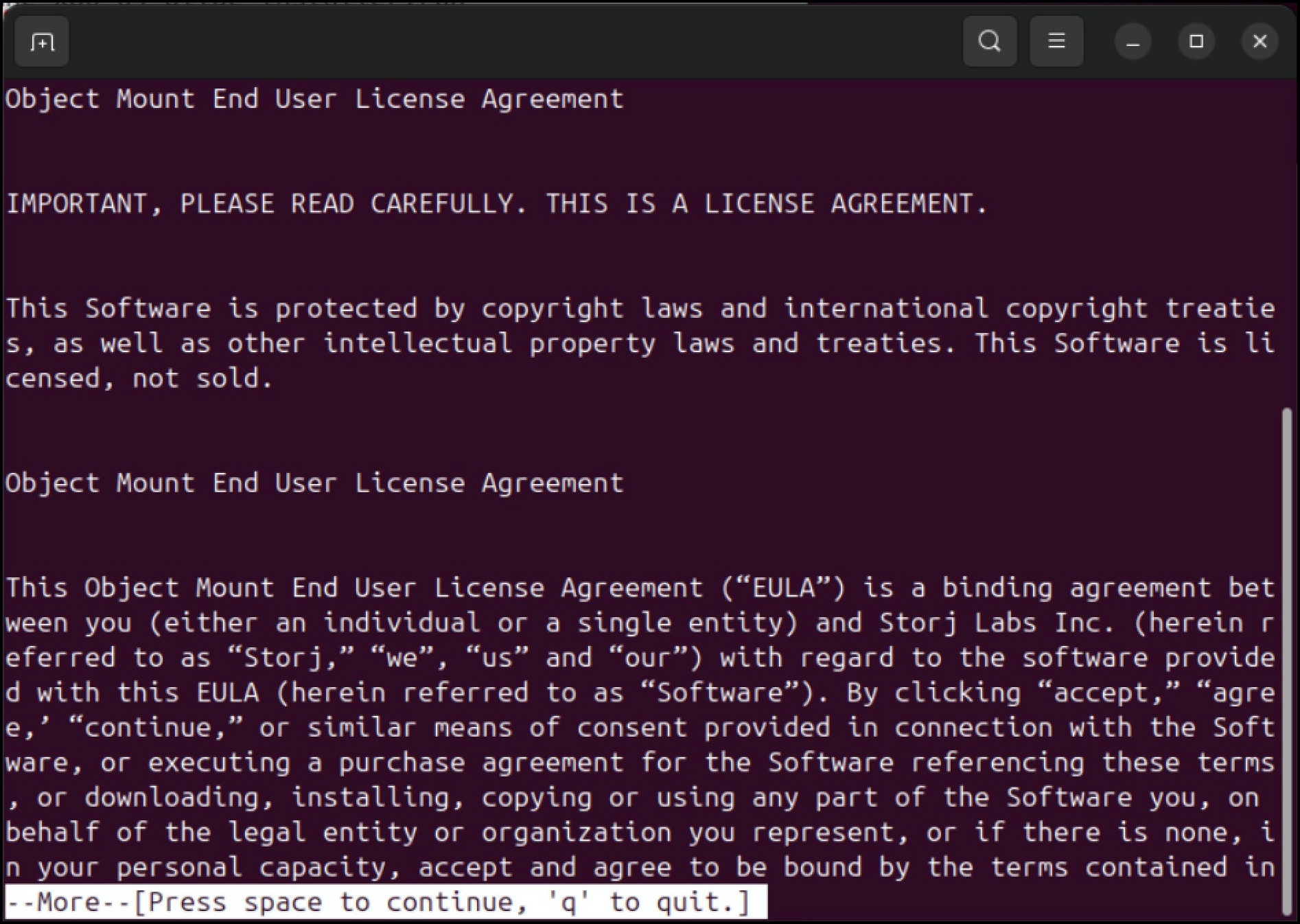
- Note: You can automate this step by setting the environment variable
CUNO_INSTALL_ACCEPT_EULA="yes". (This is equivalent to accepting the EULA).
The archive and its contents will be unpacked into a directory named cuno_{VERSION}_x86_64_musl_apk containing the package itself plus some additional files.
View the unpacked contents with the following ls command (substituting your version number):
Step 3. Install Object Mount and its dependencies using apk
3a. Install the Object Mount package (substituting your version number):
The installer will fetch and install any necessary additional packages (such as libfuse, etc.).
3b. Next, the installation process will prompt you to activate Object Mount.
Press 1 to activate a free trial:
- This will activate a fully-featured 14-day free trial.
Press 2 if you already have a license key:
- Paste your license key or enter a full path to a license key file.
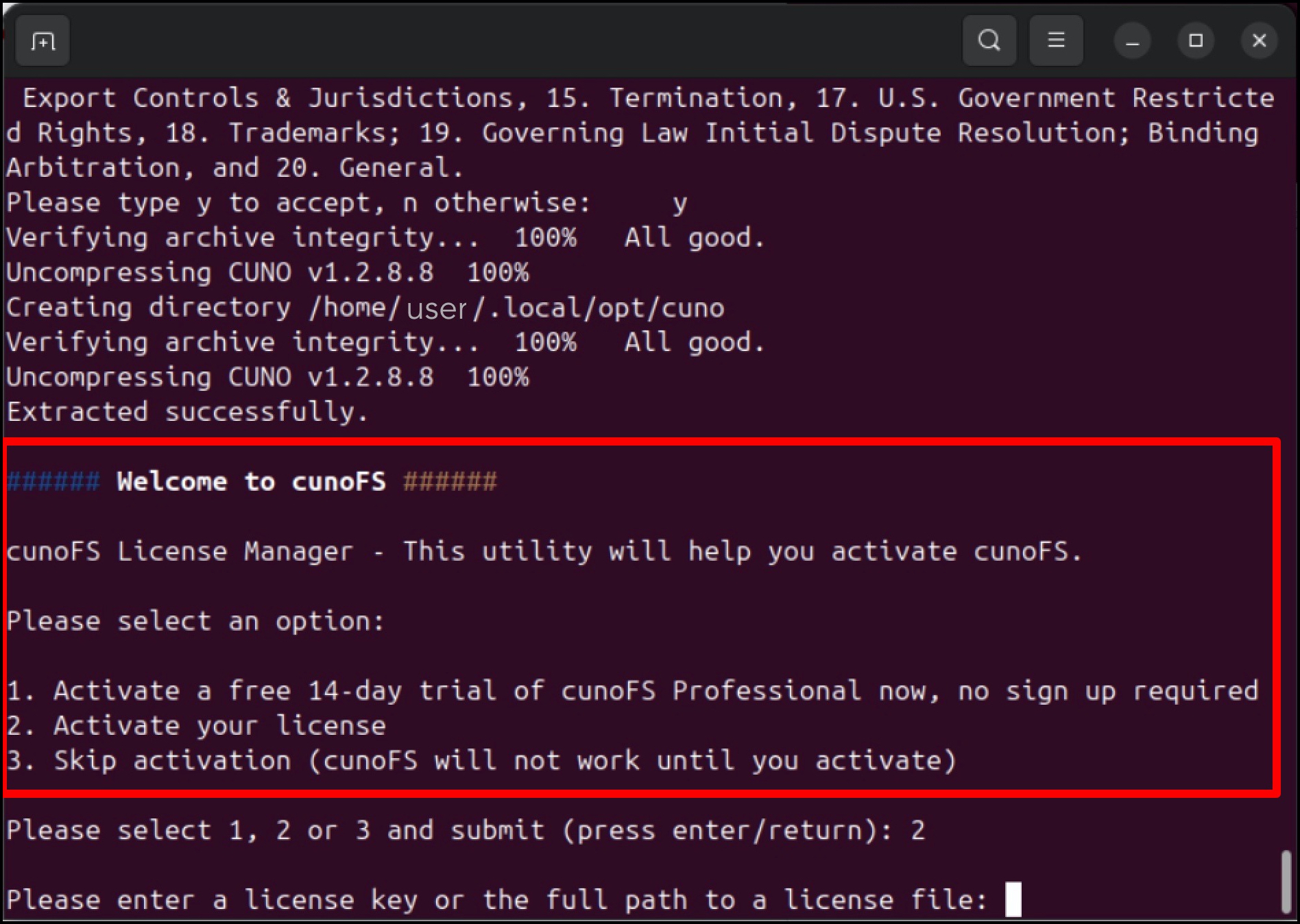
Note: You can automate this step by setting the environment variable
CUNO_INSTALL_LICENSEto one oftrial | none | <your license key> | <full path to your license key file>.
Access for: All-Users
By using sudo, all package manager installations of Object Mount install the app for use by all users of the system, not just the account that initiated the install process.
Next Steps
Once Object Mount is installed, proceed to the Linux User Guide article: Validate Functionality & Access Object Storage to ensure you can access both public and private Object Storage buckets.